
If Gmail bounces your emails with the “550 5.7.26 ” message, then it means your email has been blocked because the sender is unauthenticated. Gmail strictly checks SPF, DKIM, and DMARC alignment before accepting emails. Even a small misconfiguration, like a missing “include” in SPF, an invalid DKIM key, or a strict DMARC policy, can trigger this rejection.
The error isn’t random; it’s Gmail enforcing authentication compliance to stop spoofed or unverified senders. This guide breaks down the exact technical causes of the 550 5.7.26 error and shows how to fix each one precisely.
What is the 550-5.7.26 Gmail Error?
The 550 5.7.26 Gmail error indicates that Gmail has blocked your message because it failed authentication checks. In most cases, you’ll see it accompanied by the message “your email has been blocked because the sender is unauthenticated.” This means Gmail could not verify that the message actually came from your domain.
The error is linked to your SPF, DKIM, and DMARC configurations. Gmail uses these three protocols to confirm the legitimacy of your emails. If your SPF record doesn’t include the server or tool sending the message, Gmail flags it. If DKIM signing is missing or invalid, the message fails signature verification. And if your DMARC policy requires SPF or DKIM alignment and either fails, Gmail enforces that rule by rejecting the email.
In simple words, the 550 5.7.26 error means Gmail detected that your domain’s authentication setup isn’t properly aligned. This leads to the “your email has been blocked because the sender is unauthenticated” message and delivery failure.
Why Do You Get the “550 5.7.26 This Mail is Unauthenticated” Error?
Here are some possible reasons why Gmail is returning the “5.7 26 unauthenticated email” error message:
For Senders Sending Fewer Than 5,000 Emails a Day
If you send under 5,000 emails per day, Gmail may block your messages if:
- Your domain does not have SPF or DKIM set up.
- Your spam complaint rate exceeds 0.3%.
- Your sender address is impersonating Gmail “From” headers.
- You are not using a TLS connection to send emails.
- ARC is not enabled for forwarded messages.
- Your forward and reverse DNS records are incorrect or missing.
For Senders Sending More Than 5,000 Emails a Day
If you send more than 5,000 emails daily, Gmail may block your emails if:
- SPF and DKIM are not implemented for your domain.
- DMARC is not configured for your outgoing emails.
- Your spam complaint rate exceeds 0.3%.
- Your sender is impersonating Gmail “From” headers.
- You are not using a TLS connection to send emails.
- ARC is not enabled for forwarded messages.
- Your forward and reverse DNS records are invalid.
- Recipients cannot easily unsubscribe from your promotional emails.
Other Reasons Why You Are Receiving the Error Message
Apart from not following the above Gmail email sender best practices, below are more contributing factors for the 5505.7.26 error:
1. Spam or Inappropriate Content
Gmail can block outgoing emails that appear to contain spam or harmful content. Emails with poor grammar, misleading subject lines, or suspicious links can trigger Gmail’s spam filters.
So, it’s suggested that before sending, you proofread your emails and use a reliable grammar checker to identify and fix errors. Additionally, avoid attaching files that may contain malware, as Gmail will automatically block them. Emails promoting scams, illegal sales, or unsafe material are also flagged and rejected.
2. Bad Domain Reputation
A weak domain reputation can directly cause the 550 5.7.26 error. If Gmail or other mail servers have previously marked your emails as spam, your domain reputation score goes down. Even if your current emails are legitimate, Gmail may still block them until your reputation improves. Regularly monitor your sender reputation and keep engagement metrics healthy.
3. Blocklisted Domain or IP Address
If your sending IP or domain is listed on a known blocklist, Gmail can automatically reject your messages. Use a reputation monitoring tool to check whether your domain or IP is blocklisted and take corrective action to get it removed. Once you are whitelisted again, your delivery success rate will improve.
4. Unwanted or Irrelevant Emails
Gmail values message relevance and user interest. Sending irrelevant promotional content to the wrong audience (such as generic product ads) increases spam complaints. Instead, segment your contact list and send personalized, interest-based messages to maintain trust and avoid authentication-related blocking.
How to Solve the 550-5.7.26 Gmail Error?
To fix the 550-5.7.26 Gmail error, you need to ensure that your domain’s email authentication setup is correct and aligned. This error appears when Gmail cannot verify that your message genuinely comes from your domain. Below are the most effective ways to resolve it, explained step by step.
1. Configure and Verify SPF Record
Start by checking if your SPF record exists and includes every mail server or third-party tool that sends emails for your domain.
- Look up your SPF record using an SPF validator.
- Make sure it starts with v=spf1 and ends with ~all or -all.
- Include all authorized sending sources (for example, Google Workspace, Microsoft 365, Mailchimp, or CRM tools) using include: mechanisms.
- Avoid using more than 10 DNS lookups to prevent SPF from breaking.
If Gmail cannot find the sending IP in your SPF record, it marks your message as unauthenticated and may block it.
2. Set Up and Align DKIM
DKIM adds a digital signature to each message, helping Gmail verify that the email content has not been altered.
- Generate a DKIM key pair (public and private) in your mail server or hosting platform.
- Publish the public key in your domain’s DNS as a TXT record.
- Enable DKIM signing in your email provider settings so each outgoing email includes the signature header.
After setup, test DKIM alignment using Gmail’s “Show Original” option or an external checker. If the signature verification fails, Gmail will consider your message unauthenticated.
3. Implement a DMARC Policy
DMARC ensures SPF and DKIM align with the “From” domain in your email headers.
- Create a DMARC TXT record in DNS, starting with v=DMARC1; p=none; rua=mailto:[email protected].
- Once testing is done, gradually change the policy to p=quarantine or p=reject.
- Make sure the domain in your “From” address matches the domain in SPF and DKIM.
If DMARC alignment fails, Gmail will block your message and trigger the 5.7 26 DMARC policy error.
4. Use a Valid TLS Connection
Always send emails through servers that support TLS (Transport Layer Security). Gmail enforces encrypted connections to prevent message tampering during transit. Check your email service’s outbound connection settings to confirm TLS is enabled.
5. Monitor Domain and IP Reputation
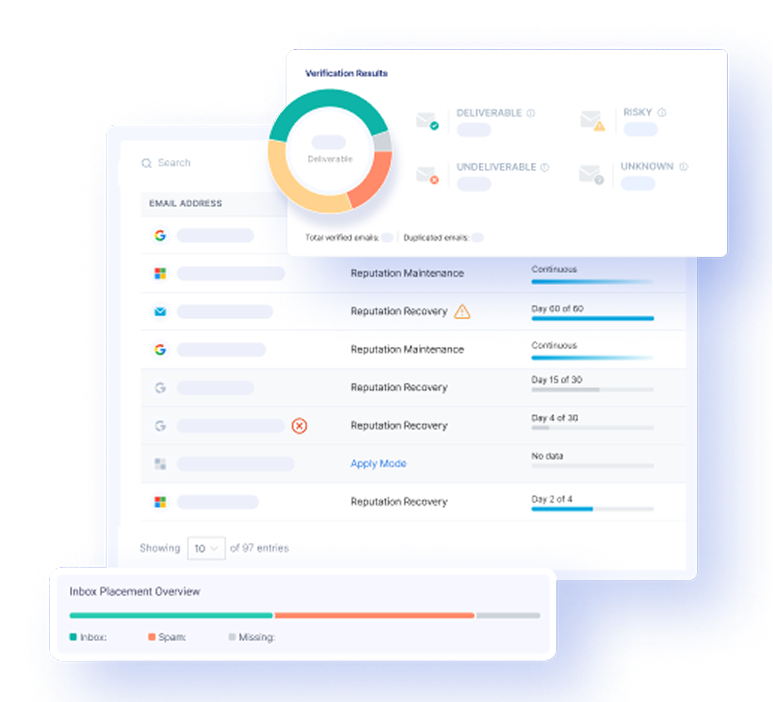
A low sender reputation or blocklisted IP can cause Gmail to reject your emails. Check your domain’s status using blocklist lookup and reputation monitoring services to find where it’s flagged. EasyDMARC’s domain reputation and DMARC monitoring tools help detect blacklisting issues, authentication gaps, and deliverability risks before Gmail starts blocking your messages.
Final Thoughts
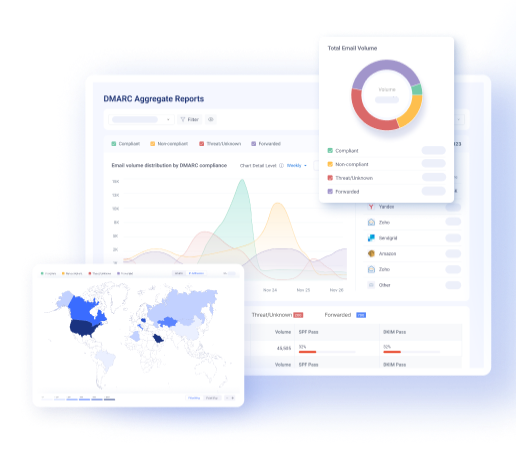
Fixing the 550-5.7.26 error is a checklist, not a mystery. Confirm your SPF includes all senders and stays under lookup limits, enable DKIM signing and verify the public key in DNS, and deploy DMARC with monitoring before moving to quarantine or reject. EasyDMARC speeds this work with its DMARC aggregate and forensic reports to find misaligned senders, the domain reputation monitor to spot blocklist hits, and the SPF and DKIM checkers to validate DNS records. With those tools you can detect root causes fast and prevent future “unauthenticated” rejections.
Frequently Asked Questions
Gmail returns 550 5.7.26 when an email fails authentication checks and your DMARC policy or Gmail’s filters decide the message is unauthenticated. Common triggers are missing SPF entries, failing DKIM signatures, or DMARC alignment failure.
Yes. Forwarding can break SPF and DKIM. If ARC is not present or valid, forwarded messages may fail authentication and be rejected as unauthenticated.
Send a test email to a Gmail account, open Message Source or Show Original, and inspect SPF and DKIM results. Use EasyDMARC’s SPF and DKIM validators to confirm records and signature validity.
No. Moving to p=reject will cause Gmail to reject any message that fails alignment. Only switch to reject after you have verified SPF/DKIM coverage and are tracking failures with DMARC aggregate reports.
Check SPF for missing senders, validate DKIM signatures and public keys, review DMARC reports for alignment failures, verify TLS and ARC for forwards, and scan blocklists. Use EasyDMARC reports and reputation monitoring to pinpoint the failing source and remediate quickly.

 We’re glad you joined EasyDMARC newsletter! Get ready for valuable email security knowledge every week.
 You’re already subscribed to EasyDMARC newsletter. Continue learning more about email security with us


