

Email environments running on platforms like Microsoft 365 and Google Workspace face constant phishing, spoofing, and malware attacks. Avanan helps close these gaps by scanning messages, enforcing policies, and isolating risky content before it reaches users. But Avanan does not work in isolation. It relies on SPF and DKIM to know which emails are real and which ones are fake.
If SPF and DKIM records are missing or incorrect, safe emails can look suspicious, and fake emails can slip in. So before setting up Avanan, it helps to understand how it works with authentication and why proper configuration makes your email cleaner, safer, and easier to trust.
This guide walks you through the configuration steps for SPF and DKIM for Avanan.
What is Avanan and How It Protects Your Email?
Avanan is a cloud-based security tool that connects to services like Microsoft 365 and Google Workspace to check emails before they reach users. It scans links, attachments, and user activity to stop phishing, malware, BEC attacks, and data leaks.
Avanan includes features like sandboxing and automated policies, which make it easier to manage organization-wide security. With the sandboxing feature, Avanan sends suspicious emails to a secure space where links and files open safely. This way, the main IT infrastructure remains secure and unaffected even if the links contain active malware.
On the other hand, automated policies are rules that Avanan follows on its own. These include blocking phishing emails, encrypting messages with sensitive information, or quarantining threats without waiting for an admin to step in and act manually.
How Avanan Works as an Email Security Gateway?
Avanan works inside your cloud email setup and monitors how messages move in and out. It uses artificial intelligence, language analysis, and behaviour tracking to notice anything suspicious or harmful. Before an email reaches inboxes, Avanan scans its content, checks attachments and links, and if it finds something risky, it replaces unsafe links or sends the email to quarantine instead of letting it land in front of users.
This gives administrators more control over their environment. They can create rules that block threats, encrypt sensitive messages, or allow trusted emails without having to do these actions manually each time. Avanan also relies on standard checks such as SPF, DKIM, and DMARC to verify that a sender is genuine. Many organisations add an Avanan SPF record so their emails pass these checks more easily and build higher trust.
Why Email Authentication is Required for Avanan?
Avanan checks email content to stop threats, but it still needs SPF, DKIM, and DMARC to verify that the sender is genuine. These authentication records help it identify your domain properly and take the right actions. Without them, harmless emails may appear risky, and dangerous ones might slip through by pretending to be you.
SPF, DKIM, and DMARC let Avanan confirm whether emails using your domain actually come from approved servers. This reduces spoofing, phishing, and impersonation attempts. When these checks work alongside its threat scanning, the platform can block fake emails, protect your brand, and guide Avanan email encryption for trusted messages.
Authentication also helps with email delivery. Mail services treat correctly aligned domains as reliable, which improves inbox placement and lowers spam issues. Many organisations publish an Avanan SPF record to strengthen domain trust and improve how their emails are received across networks.
The Process of Configuring Avanan SPF Record
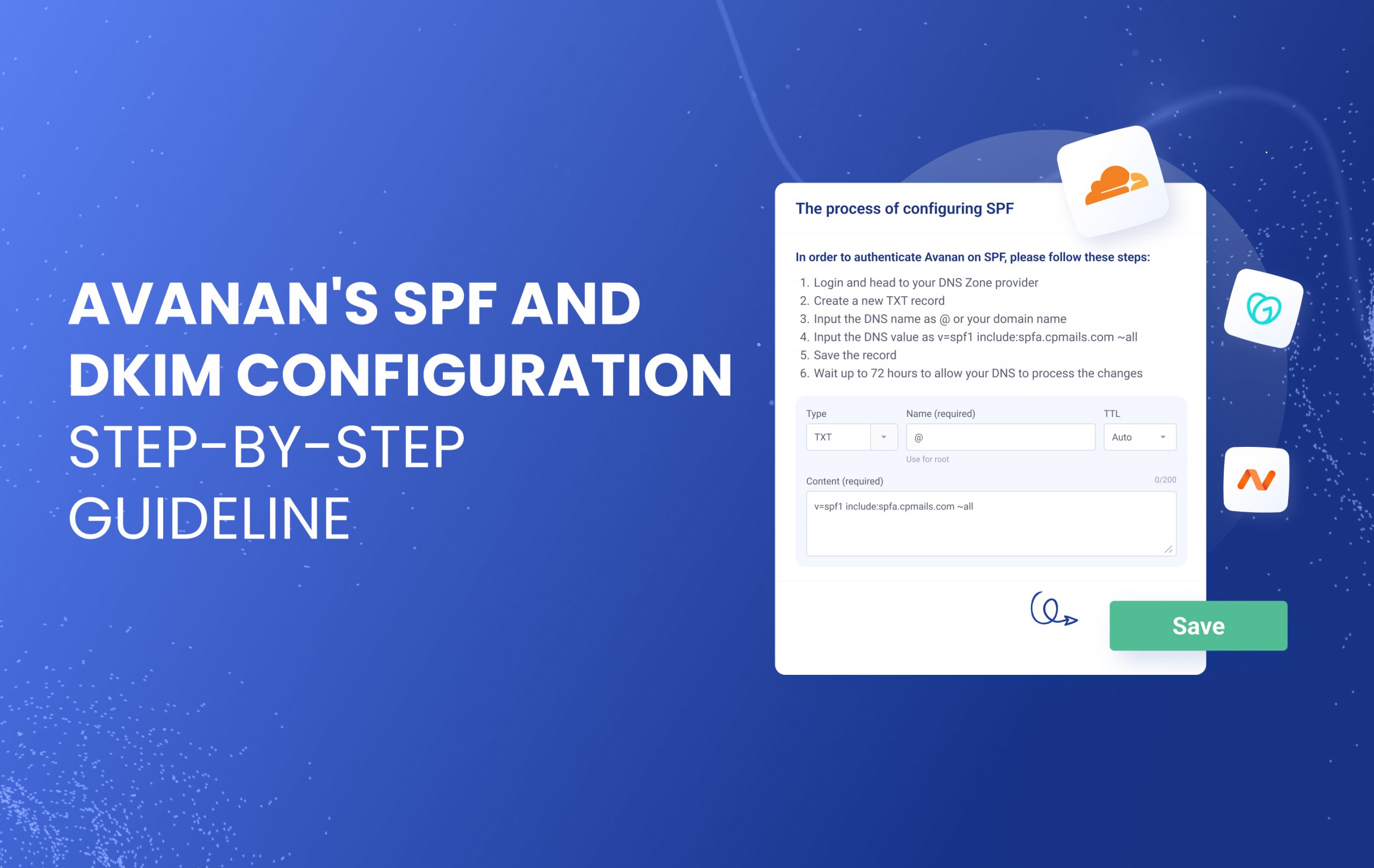
To make Avanan work smoothly with your email domain, you must add its sending sources to your SPF record. This tells receiving mail servers that emails routed through Avanan are legitimate and not spoofed.
Here’s how to do it:
- Log in to your DNS management console.
- Find the existing SPF record. If you don’t have one, create a new one using the SPF Record Generator.
- In the SPF record, add Avanan’s include statement, ‘include:spfa.cpmails.com.’ This tells receiving mail servers that emails routed through Avanan are permitted for your domain.
- End the SPF record with ~all (soft fail) or -all (hard fail), depending on how strict you want to be with failed emails.
Your record may also contain other senders, like Google or Microsoft, depending on your setup. A typical example looks like this:
v=spf1 include:spfa.cpmails.com include:_spf.google.com -all
Save the record and wait for it to propagate. You can then check whether it is correct using the SPF Record Lookup tool. When it validates successfully, Avanan’s traffic aligns properly with SPF checks, improving email security and delivery.
Important Note: Each domain must have only one SPF TXT Record. If you have multiple SPF Records, SPF will return a PermError.
The Process of Configuring DKIM for Avanan
To use DKIM with Avanan, you need to publish a DKIM key in your DNS and turn on signing in your email setup. DKIM helps mail servers confirm that your emails are really from your domain and have not been changed on the way.
Here’s how to do it:
- Go to your Avanan or email security dashboard and enable DKIM. It will give you a selector and a DKIM public key.
- Add this key as a TXT record in your DNS panel. You can generate it in the correct format using the DKIM Record Generator.
- Save the record and wait for DNS to update. Once it spreads, return to your dashboard and turn on DKIM signing.
Finally, use the DKIM Lookup tool to check if everything works. If validation passes, Avanan signs your emails and increases trust in your domain.
Important Note: DKIM should be configured on the email provider side (Google Workspace, Microsoft 365, etc.), and Avanan will automatically respect this configuration, inspecting email traffic for threats after DKIM is set up. Avanan functions as a security layer that intercepts and scans emails for phishing, malware, and other threats.
Common Avanan SPF and DKIM Configuration Issues
Even after setting up SPF and DKIM, you may still face problems that stop authentication from working. Most issues come from small mistakes in DNS entries or settings that do not match Avanan’s requirements. Knowing these common errors helps you troubleshoot faster and keep your email security running smoothly.
SPF Record Not Validating Correctly
SPF problems often occur when a domain has more than one SPF record, misses an important ‘include’ value, or crosses the limit of allowed DNS lookups. If your SPF record fails, check that there is only one TXT entry for SPF and that it contains Avanan’s ‘include’ statement, that is ‘include:spfa.cpmails.com.’
You can use a credible SPF lookup tool to see whether your Avanan SPF record is valid and readable. If you spot any issues, fix them. Once fixed, email servers recognise your messages more reliably and reduce unnecessary blocking.
DKIM Signature Failing After Setup
DKIM issues usually happen because of a small error in the selector name, a typo in the TXT record, or DNS changes that have not yet been updated across the internet. In some cases, DKIM signing often remains inactive even though the key exists.
It’s suggested that you check your selector, compare your TXT record carefully, and give DNS some time to update. You can confirm the status using a DKIM checker. When DKIM validates correctly, receiving mail servers trust your messages more, and Avanan email encryption aligns smoothly with your domain identity.
Important note: If the provider recommends publishing also a DMARC record, there’s no need to do so if you already have a DMARC record in place, as each domain can only have one DMARC record.
Final Thoughts on Avanan SPF Record and DKIM Setup
When your SPF and DKIM records align with how Avanan scans and filters email, your messages reach inboxes more smoothly, and spoofing becomes harder for attackers. But these records need attention from time to time, especially when you add new tools or change email providers. So, instead of doing the guesswork, take the next step and sign up for EasyDMARC’s managed email authentication services. We will help you keep your domain secure, visible, and easy to trust.
Frequently Asked Questions
If the Avanan SPF record is missing or wrong, email servers may not trust your messages. This can lead to delivery failures, emails landing in spam, or attackers spoofing your domain more easily.
Once you add SPF or DKIM, it usually takes a few minutes to a few hours for DNS to update. After that, Avanan and mail servers start recognising the records and applying them automatically.

 We’re glad you joined EasyDMARC newsletter! Get ready for valuable email security knowledge every week.
 You’re already subscribed to EasyDMARC newsletter. Continue learning more about email security with us


Seem to be missing the details on the “The process of configuring DKIM.” Additional information here would be helpful. We use Managed DKIM with EasyDMARC – are we still supposed to configure DKIM in M365 Admin?
Hey Glenn, thanks for your comment!
Avanan itself doesn’t provide DKIM signing. You need to enable DKIM directly on your Microsoft 365 tenant. We included that info earlier but missed the redirect link to Microsoft’s article on how to set it up (the same applies if you’re on Google Workspace).
And yes, our Managed DKIM is designed to help you manage your DKIM records. We can’t generate DKIM keys for Microsoft 365, because M365 generates and stores the private key on its own servers while only providing the corresponding public key to customers. That’s how ESPs work in general. What you’ll need to do is copy and paste the CNAME records that Microsoft gives you into the Managed DKIM section.