

Configuring email authentication for Exclaimer does not have to be complicated. If Exclaimer is part of your email flow, setting up an Exclaimer SPF record and DKIM record correctly is key to avoiding spam issues and authentication failures. A small DNS mistake can cause emails to fail SPF or DKIM checks without any obvious warning.
In this step-by-step guide, we will walk you through how to configure SPF and DKIM for Exclaimer, verify your setup, and fix common problems so your emails stay trusted and DMARC-compliant.
How to Set Up an Exclaimer SPF Record
Setting up Exclaimer SPF records for domains is simple when you follow the steps carefully and avoid common DNS mistakes. Here is how you need to proceed:
Step 1: Log in to Your DNS Provider
Start by signing in to the DNS management panel where your domain is hosted. This could be Cloudflare, GoDaddy, AWS Route 53, or any other DNS provider you use to manage your domain records.
Step 2: Create or Update Your SPF TXT Record
Your domain must have only one SPF record. If multiple SPF TXT records exist, email receivers will return a PermError, and SPF validation will fail.
If you already have an SPF record, edit it. If not, create a new TXT record. Use the following SPF value:
v=spf1 include:spf.<region_code>.exclaimer.net ~all
Replace <region_code> with the region shown in your Exclaimer portal. You can find this by logging into Exclaimer and navigating to Subscription > Manage, then checking the Server field under subscription details. The following screenshot includes the UAE as the example region code.
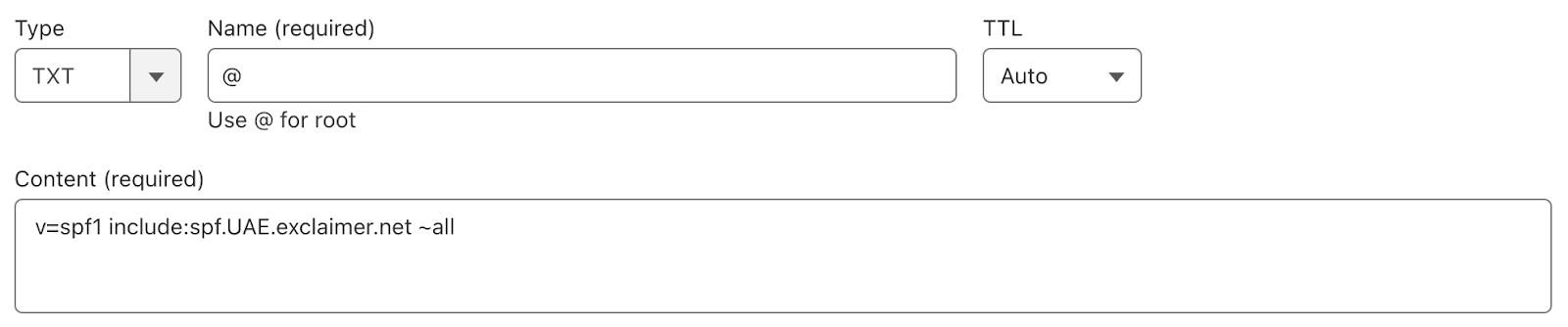
If you are unsure about the syntax or need to merge Exclaimer with existing senders, the SPF Record Generator can help you build a valid SPF record without breaking your current setup.
Step 3: Merge Exclaimer with Existing SPF Records
If your domain already sends email through Microsoft 365, Google Workspace, or other platforms, Exclaimer must be added to the same SPF record, not as a separate one.
Example: v=spf1 include:spf.protection.outlook.com include:spf.UAE.exclaimer.net ~all
This ensures that all authorized sending services are listed in a single SPF record, which is required for proper SPF validation.
Step 4: Save the Record and Wait for DNS Propagation
Save your changes and allow time for DNS propagation. Updates can take anywhere from a few minutes to up to 72 hours to fully propagate across global mail servers. Once propagation is complete, Exclaimer-signed emails should authenticate successfully with SPF.
How to Configure Exclaimer DKIM
Unlike SPF, you can’t always add an Exclaimer DKIM record yourself. In most cases, Exclaimer’s support team helps generate the correct DKIM selectors and keys for your domain. This is needed because Exclaimer signs emails through its own servers, and DKIM settings can vary by region or tenant.
Important note– If the provider recommends publishing also a DMARC record, there’s no need to do so if you already have a DMARC record in place, as each domain can only have one DMARC record.
How to Verify Exclaimer SPF and DKIM
Once you have set up SPF and DKIM, it is important to verify that Exclaimer-signed emails are authenticating correctly.
Step 1: Check the SPF Record
Use the SPF Lookup tool to confirm that your domain has a single valid SPF record and that Exclaimer is included. This helps catch common issues, such as missing include statements or multiple SPF records.
Step 2: Check the DKIM Record
Next, use the DKIM Lookup tool to verify that your Exclaimer DKIM selector is published correctly and accessible to receiving mail servers.
Step 3: Review Authentication Results
Send a test email through Exclaimer and review the email headers. Both SPF and DKIM should show a “pass” result. If either fails, it usually points to a DNS or propagation issue that needs fixing.
Common Exclaimer SPF and DKIM Problems
Here are some common problems that can appear after configuring SPF and DKIM for Exclaimer emails, along with simple ways to fix them.
Multiple SPF Records
Some domains end up with multiple SPF TXT records when Exclaimer is added separately to existing email services like Microsoft 365 or Google Workspace. This causes an SPF PermError, and receiving mail servers may ignore SPF checks altogether.
To fix this, merge Exclaimer and all other sending services into one SPF record using multiple ‘include’ entries.
Exceeding the DNS Lookup Limit
SPF allows a maximum of 10 DNS lookups. If your domain uses multiple email tools, adding Exclaimer can push you past this limit, causing SPF to fail.
The solution is to review your SPF record, remove unused services, or simplify entries so you stay within the lookup limit.
Wrong or Missing CNAME Records
Exclaimer DKIM authentication can fail if the DKIM record provided by Exclaimer’s team contains typos, wrong selectors, or incorrect values in DNS. Even a small mistake can break DKIM authentication.
Always copy the DKIM record exactly as provided and double-check the host and value before saving.
DKIM Verification Fails After Publishing
Exclaimer may attempt to verify DKIM before DNS changes have fully propagated, leading to temporary verification errors. To avoid this, allow sufficient time for DNS propagation, then retry verification in the Exclaimer portal. Avoid making repeated DNS edits during this period, as that can delay validation further.
Simplifying Exclaimer SPF and DKIM Management
Setting up Exclaimer SPF record and DKIM record correctly helps ensure your emails are trusted and delivered without issues. From publishing a single SPF record to verifying DKIM selectors, small mistakes can cause big authentication failures. With EasyDMARC, you can generate, validate, and monitor SPF and DKIM records from one place. Start a 14-day free trial to simplify Exclaimer email authentication and catch issues before they impact deliverability.
Important note: If the provider recommends publishing also a DMARC record, there’s no need to do so if you already have a DMARC record in place, as each domain can only have one DMARC record.
Frequently Asked Questions
No, you should not remove valid SPF entries that are still in use. When adding Exclaimer, the goal is to merge it into your existing SPF record, not replace it. Keep all active sending services listed in a single SPF record and remove only outdated or unused entries to avoid SPF failures.
Yes, Exclaimer works seamlessly with Microsoft 365 and Google Workspace. You simply need to include Exclaimer in the same SPF record as your existing email provider.
Exclaimer does not replace your existing email service or change how emails are sent. It works as an additional layer that processes and signs emails, usually as a relay. Your users continue sending emails normally through Microsoft 365 or Google Workspace, while Exclaimer handles signatures and authentication in the background.

 We’re glad you joined EasyDMARC newsletter! Get ready for valuable email security knowledge every week.
 You’re already subscribed to EasyDMARC newsletter. Continue learning more about email security with us


