
Most email deliverability problems start long before your campaign hits the inbox. They begin at the DNS level, where mailbox providers decide whether your domain is a real sender or just another impersonator. If you are using Cloudflare and your emails are landing in spam or getting rejected, your SPF setup is one of the first things to check.
Learning how to set up a Cloudflare SPF record correctly helps you control who is allowed to send emails on your behalf, prevents domain spoofing, and builds trust with Gmail, Outlook, and other major providers.
How to Add SPF Record to Cloudflare
Adding an SPF record to your Cloudflare DNS settings will help to ensure that emails sent from your domain are not marked as spam.
A properly configured Cloudflare SPF record tells mailbox providers like Gmail and Outlook which servers are authorized to send emails for your domain. This improves deliverability and reduces the risk of spoofing or phishing using your domain name.
How to Generate an SPF Record?
To create an SPF record, you need to define what sources you will use for sending emails on behalf of your domain and identify all those sources in your SPF record.
These sources can include your web hosting provider, email service providers such as Zoho or Google Workspace, CRM tools, and any third-party tools that send emails on your behalf. All of them must be listed in the same SPF record Cloudflare will store in DNS. You can use EasyDMARC’s SPF record generator for an easy and error-free process.
To allow only one specific server to send emails on behalf of your domain, specify that server’s IP address in your SPF record. In case of allowing only the server with IP address 1.2.3.4 to send emails on behalf of your domain, then your SPF record would look like this:
v=spf1 ip4:1.2.3.4 ~all
This means only this IP is allowed to send emails; all others should be treated as suspicious.
Step 1. Add the SPF Record to Your Cloudflare account
- Log in to your Cloudflare account
- Click on your domain field
- Head to the DNS section
- Click “Add” Record
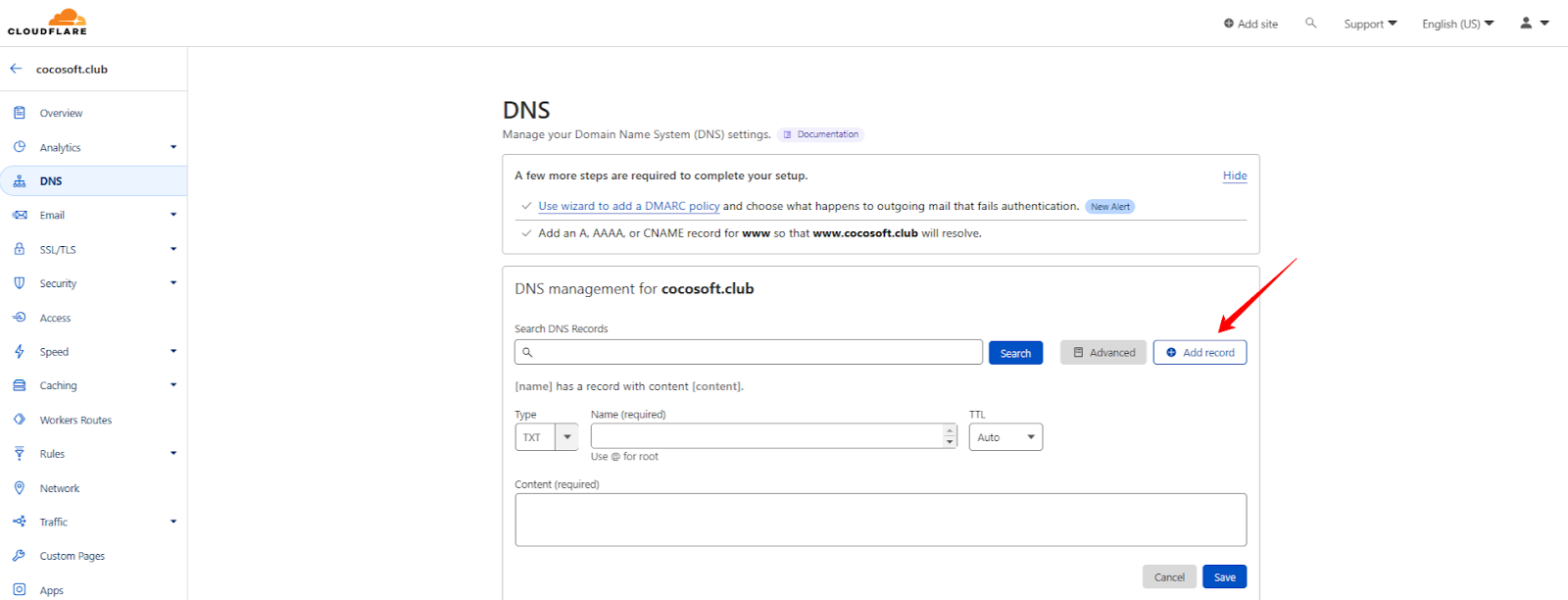
This is the main area where you will add the SPF record to Cloudflare and manage all DNS-related settings for your domain.
Step 2. Add your SPF Type, Host, and Content
In the DNS section, find the Type, Name (required), and Content (required) fields, then enter the values shown in the screenshot below.
When adding a Cloudflare SPF record, always select TXT as the record type, and use @ in the Host field for the root domain.
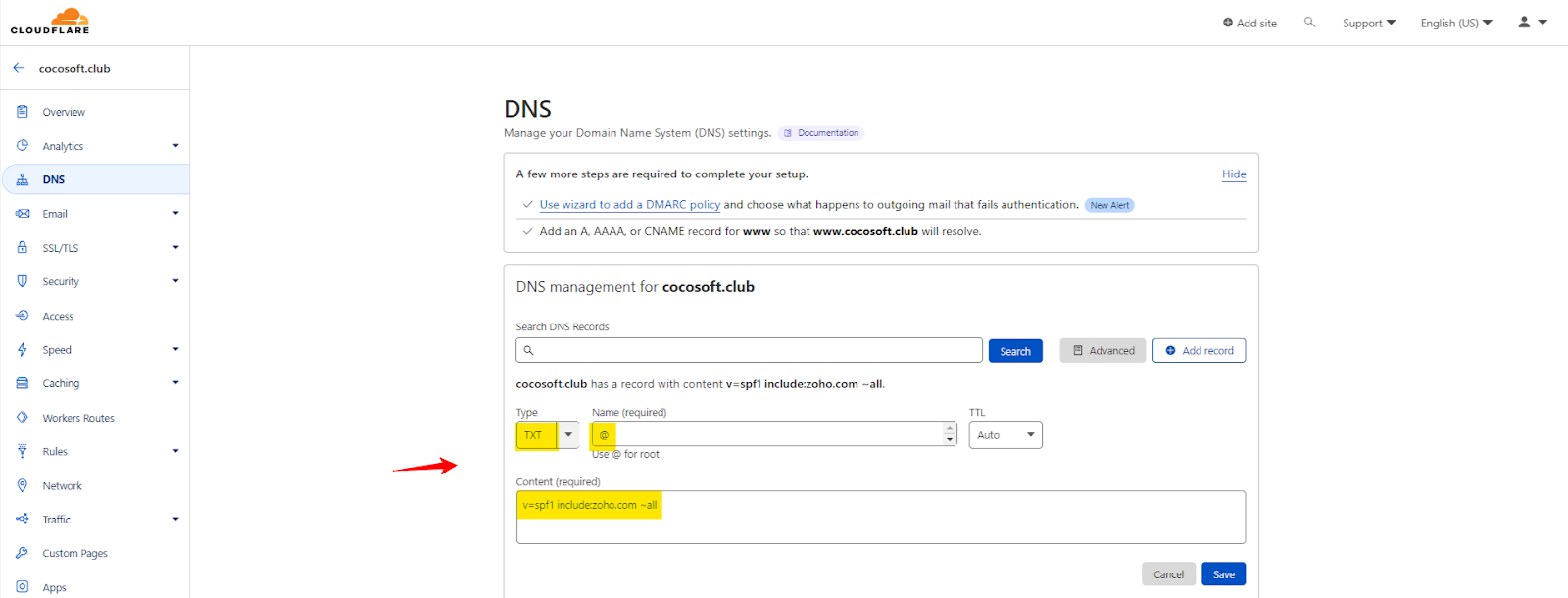
Here’s an example of a case, where we whitelisted Zoho’s SPF in our DNS zone.
| Type | Host | Content |
| TXT Record | @ | v=spf1 include:zoho.com ~all |
Step 3. Add the IPs in the Same SPF Record
If you’re using sources that only have an IP address you can add IPs in SPF record.
Make sure you don’t create multiple SPF records. Cloudflare allows only one valid SPF record per domain, so all sources must be combined into a single line.
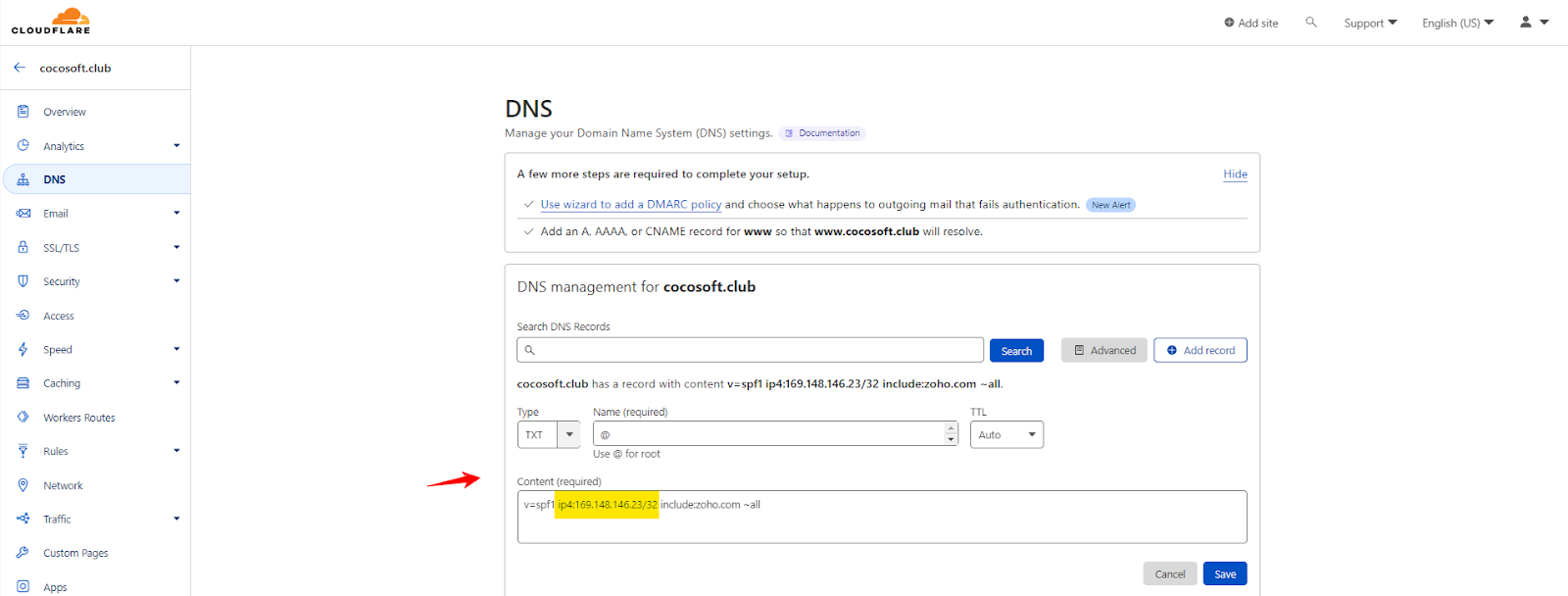
Here’s an example on how to fill it:
|
Type |
Host |
Content |
|
TXT Record |
@ |
v=spf1 ip4:169.148.146.23/32 include:zoho.com ~all |
Step 4. Finish your Cloudflare SPF Setup
Click “Save” to finish your Cloudflare SPF setup and this is how to add an SPF record in Cloudflare.
After saving, it may take a few minutes to a few hours for DNS to fully propagate. Once done, you can use any SPF checker tool to verify that your Cloudflare SPF record is working correctly.
Common SPF Mistakes in Cloudflare and How to Fix Them
At times, even with a properly configured DNS setup, small configuration errors can silently affect email delivery. Below are common issues encountered with Cloudflare SPF records and how to resolve them.
Existence of Multiple SPF Records
One of the most common mistakes is creating more than one SPF record for the same domain in Cloudflare. This usually happens when different email tools or team members add their own records separately. Mailbox providers only read one SPF record per domain. If multiple records exist, SPF fails automatically, even if each record is technically correct on its own.
To fix this, combine everything into a single record. All sending services must be listed under one v=spf1 entry when you add a SPF record to Cloudflare, instead of creating multiple TXT records.
Missing Email Services
Many domains that use Cloudflare rely on third-party tools, such as email marketing platforms, CRM systems, helpdesk tools, or payment systems, to send emails. If these services are not included in SPF, their emails will fail authentication. This often occurs when a new tool is added, but the DNS record is not updated. As a result, emails may end up in spam or be rejected outright.
To fix this, list every platform that sends emails on your behalf and add them to your Cloudflare SPF record using the include or ip4 mechanisms.
Exceeding the DNS Lookup Limit
SPF allows a maximum of 10 DNS lookups. Complex setups with multiple email services can easily cross this limit, especially when several providers are added using chained include statements. When this happens, mailbox providers stop processing SPF and treat it as a failure, even if all sources are legitimate.
You can fix this by flattening your record. An SPF flattener replaces multiple include mechanisms with direct IP addresses, reducing lookups and keeping your Cloudflare SPF record within technical limits.
How to Verify SPF Using an SPF Checker?
After setting up your SPF record, it is important to verify whether it is working correctly. An SPF checker helps you confirm that your Cloudflare SPF record is valid and properly formatted.
You can use the EasyDMARC SPF record lookup tool to instantly check your domain. Simply enter your domain name into the tool, and it will fetch your SPF record from DNS and show all authorized sending sources. This makes it easy to spot common issues like missing email services, syntax errors, or multiple SPF records that could affect deliverability.
Important Recommendations
Having multiple SPF Records for a single root domain is a bad practice and results in authentication failure. If you use multiple sources within your organization, you must have them allowlisted in a single SPF Record.
How Can EasyDMARC Help?
Ensuring your email server is secure and that only legitimate emails are sent is essential for your business, customers, and reputation.
Now that you’ve added an SPF record to your Cloudflare account, you can further enhance your email security by setting up DKIM and DMARC, taking tried-and-true steps toward DMARC compliance.
Want to learn more? Explore EasyDMARC tools by signing up for our platform.
Frequently Asked Questions
No, Cloudflare IPs should not be added to your SPF record unless Cloudflare is sending emails on your behalf. Cloudflare only manages DNS and traffic routing, not outbound email delivery.
No, Cloudflare does not automatically create SPF records for your domain. You must manually add and manage your SPF record based on the email services you use to send emails.
SPF changes usually take a few minutes to a few hours to apply. In some cases, DNS propagation can take up to 24 or 48 hours, depending on TTL and caching.
You can check your Cloudflare SPF record by using an SPF lookup tool. Enter your domain name, and the tool will fetch the SPF record and show whether it is valid.

 We’re glad you joined EasyDMARC newsletter! Get ready for valuable email security knowledge every week.
 You’re already subscribed to EasyDMARC newsletter. Continue learning more about email security with us